
Last week, a client hit me with a seemingly simple request in Unreal.
Validating texture size and tri count is nice, but some of our blueprints have complicated setup, and we must ensure that they are setup right.
The problem is as follows: imagine you created a Blueprint class in the editor, called GizmoBase. You then inherit from this Blueprint to create specialized Gizmos like GizmoFoo and GizmoBar. In each of these specialized Gizmos, you manually add and configure a component.
However, there’s a crucial step. You must assign a specific component tag for everything to work properly.
Anyone familiar with game development knows that from the second instance onward, people will forget to add that tag, and you’ll still be tracking these bugs well after the project has shipped.
If only we had a way to ensure that the tag is added.
Asset Validators
If you’re not already familiar, Asset Validators in Unreal are awesome. They’re a great way to quickly ensure that assets follow certain rules in your project. Things like naming conventions, content standards, and more.
Although you can write them in C++ quite easily, what makes them really outstanding is that you can also create them in Blueprints. Right in the editor. Fully tailored for your specific project needs.
Validating blueprint
That’s where the need arose.
After adding some basic validators for textures and meshes, he began to wonder: could we also validate some of their custom assets? Since these validators are created within the editor, they have access to all the custom Blueprint classes.
Simple, right? Just cast the input asset to the Blueprint class, and validate away!
Not so fast.
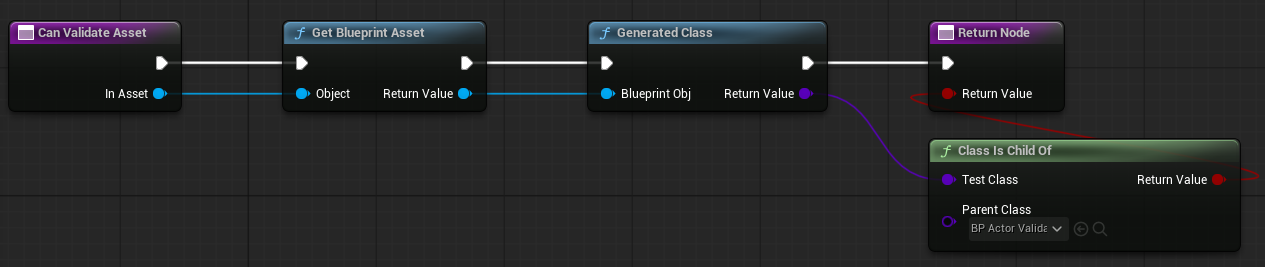
CanValidateAsset
You see, what you are getting as input when validating a Blueprint asset is … a Blueprint object, of class Blueprint. This means any direct cast to your specific type will fail.
What you need to do is compare against the type of the generated class.

It’s not as straightforward as a simple cast, but it’s the essential step you must take.
ValidateLoadedAsset
Once the validator correctly targets the asset, the next step is to perform the actual validation, and that’s where things start to get tricky.
As previously mentioned, one reason we couldn’t cast the Blueprint to our specific type was because we were dealing with a Blueprint object. Remember, your custom Blueprint is essentially a recipe to generate an object from a base class. In C++, reading that recipe is straightforward, but in Blueprints, it’s a different story.
What we need to do is read that recipe and list out its components.

Note that I omitted the code checking the class as this function can only be executed if
Can Validate Assetwas successful.
The array at the end iterates over every component in our Blueprint, and from there, we can start validating the data quite easily. We just need to cast each handle to the expected component type.

You can also do some filtering based on the component’s name.

Small quirk, it seems that this loop for some reason goes several time over the same components. If that matters to your validation algorithm, you may want to consider adding them to an array and checking if you haven’t already come across that component.
For example, we can check that the render target texture is set, and that at least a tag is defined.

Final note: don’t hesitate to be explicit in your messages. Clear, detailed instructions will help your content team address issues more quickly and effectively.